Guide
Image to Video AI: How to Turn a Product Photo into a Cinematic Ad
By Ferdinand Hemptenmacher · Video Editor & UGC Creator
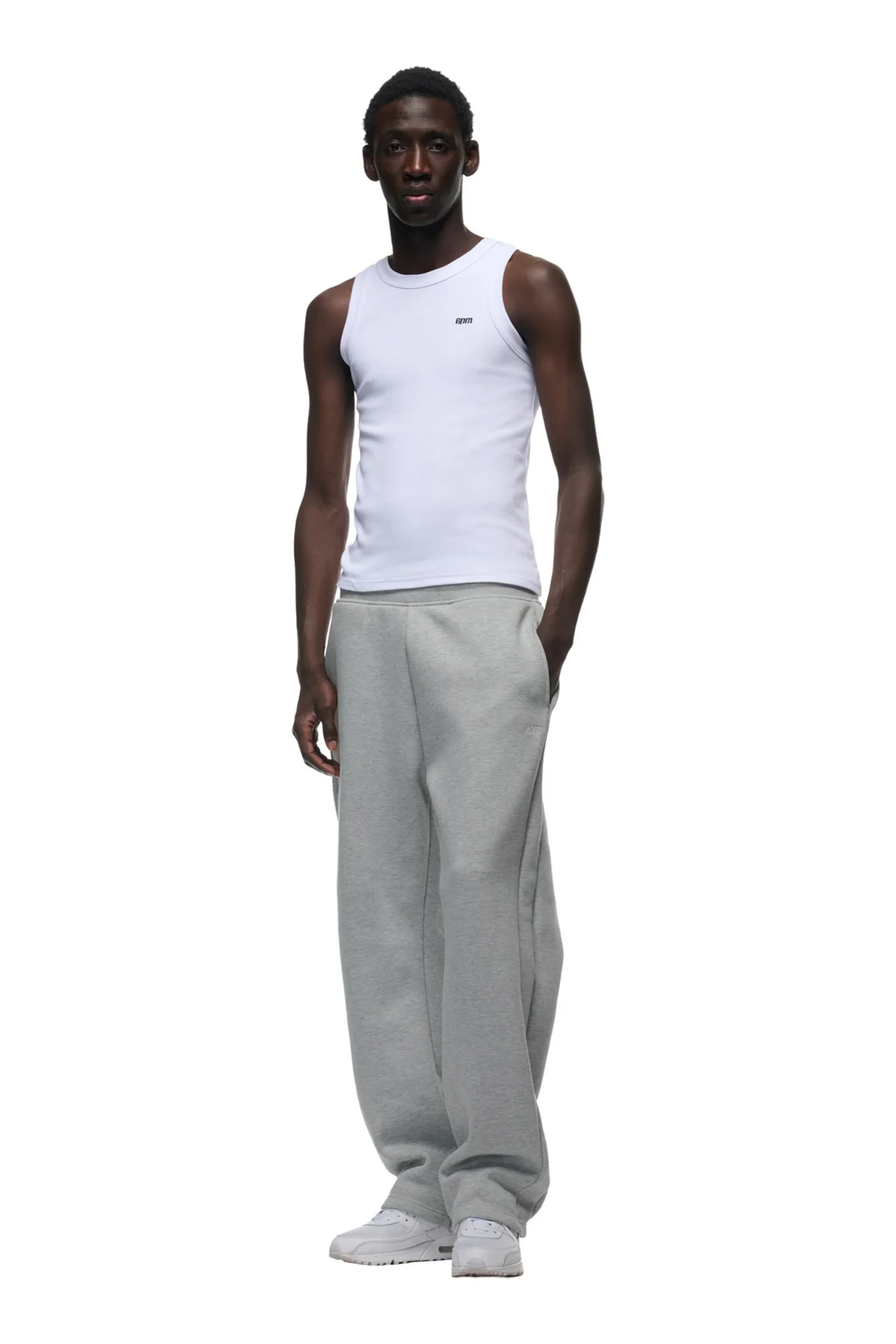
Image-to-video AI tools let brands animate a single product photo into a moving ad in minutes. Used well, they replace expensive shoots for the bottom of the funnel — Meta Ads, TikTok, Reels — while keeping the original product faithful to the source image.
This is the exact workflow I use to produce ad videos for fashion, beverage and cosmetics brands. It's not a one-prompt trick: a good final spot is many generations, picks and editing passes stacked together.
What "image to video AI" actually means
Image-to-video AI is a family of generative video models — Runway, Kling, Veo, Sora, Luma, Pika — that take a still image plus a short text prompt and output a few seconds of motion. The model preserves the subject and camera framing from the photo and invents plausible motion: fabric folds, liquid splashes, camera moves, light shifts.
Why brands should care
- Cost. A product shoot costs thousands. A single image-to-video clip costs cents to a few euros.
- Speed. Concept → finished ad in a day instead of weeks.
- Iteration. Generate 20 variants for Meta Ads, test, and double down on the winner.
- Consistency. The source photo locks the product look, so the ad still matches your catalog.
The workflow, step by step
1. Start with the right source photo
Image-to-video models inherit everything from the source frame. Crisp lighting, clean background, a clear subject and the framing you want the final ad to keep. If the photo is soft or cluttered, the generated motion will be soft and cluttered.
2. Write motion prompts, not scene prompts
The image already defines the scene. Your prompt's job is to describe motion: "slow push-in, fabric ripples in the wind, soft golden light shifts left to right". Avoid contradicting the image — don't ask for a new background or a different product.
3. Generate many, pick few
Plan for a 5–10× over-generation ratio. Most clips will have small artifacts — a warped logo, a stutter on a hand, melting text. Generate enough variants that you can pick the clean ones and discard the rest. This is the step most beginners skip.
4. Edit like a real ad
Cut the keepers together in a real editor: 2–4 short clips, a hard cut on a beat, brand color grade, sound design, end card with the logo and CTA. The edit is what turns generated footage into an ad people watch through to the end.
5. Ship vertical, test on Meta Ads
Export in 9:16 for Reels, TikTok and Meta Ads placements. Run 3–5 variants in a single Advantage+ campaign and let the platform allocate spend to the winner.
Tools I use
- Generation: Kling, Runway Gen-4, Veo, Sora — rotated per shot.
- Upscaling: Topaz Video AI for cleaning artifacts and pushing to 1080p+.
- Editing: CapCut Pro or DaVinci Resolve, depending on grade complexity.
- Sound: licensed library tracks plus AI-generated SFX layered under cuts.
Common mistakes
- Treating the first generation as the final clip.
- Over-prompting and fighting the source image.
- Skipping the edit — raw AI footage rarely converts on its own.
- Forgetting brand consistency (color, type, end card).
Want this done for your product?
I produce image-to-video ads for brands across fashion, beverage and cosmetics — from a single product photo to a finished Meta Ads-ready spot. See recent work or get in touch on the contact page.